Forwarding documents to Digitoo.ai
We recommend setting up a dedicated email address specifically for receiving invoices from your business partners. Since Digitoo.ai supports document uploads via email, you can configure your inbox to automatically forward all incoming emails directly to Digitoo.ai for automatic processing.
Getting your import email address
First, you need to create an Accounting Unit. Once created, a unique Digitoo.ai email address (the "import address") is automatically generated for each document queue.
To find this address:
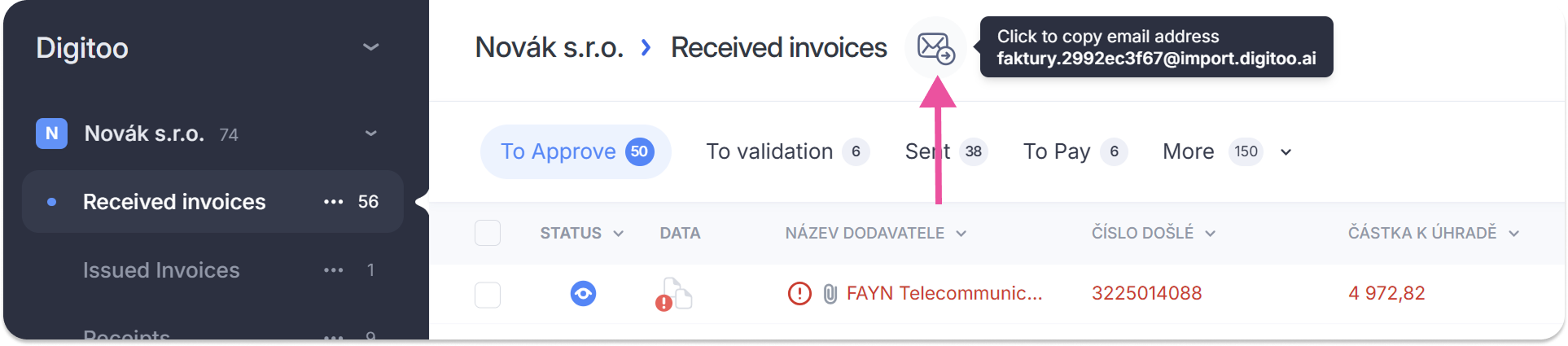
Open the specific document queue.
Click on the envelope icon to copy the email address to your clipboard.
If you do not use a dedicated central inbox, you can manually forward individual emails to Digitoo.ai by using the unique import address of the respective accounting unit as the recipient. Alternatively, you can set up forwarding rules directly in your email client.
Digitoo.ai will only process emails that contain a supported file format as an attachment.
Supported document formats: JPG, JPEG, PNG, TIFF, PDF and PDF with ISDOC
Important details:
Empty emails: If an email contains no attachments, no import will take place.
Multiple attachments: If a single email contains multiple attachments, Digitoo.ai will process each file as a separate document.
Multiple documents in one file: The system cannot automatically split a single file that contains multiple different invoices. In this case, you must split the document manually before sending it, or ask your supplier to send each invoice as a separate file.
Changing the import email address
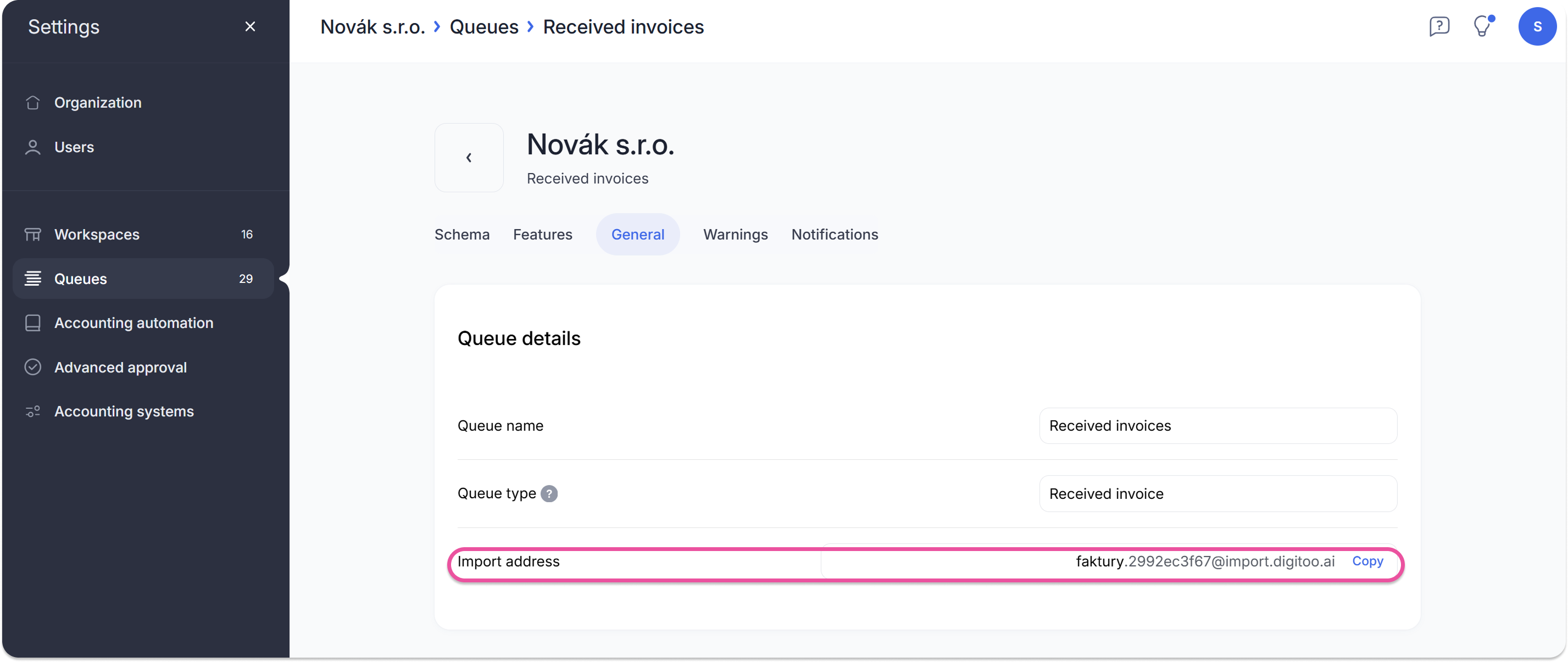
The name of your Digitoo.ai email address can be partially customized (available for Admin and higher roles). You can modify the first part of the import address by navigating to: Settings -> Queues -> General tab.
Failed import notifications
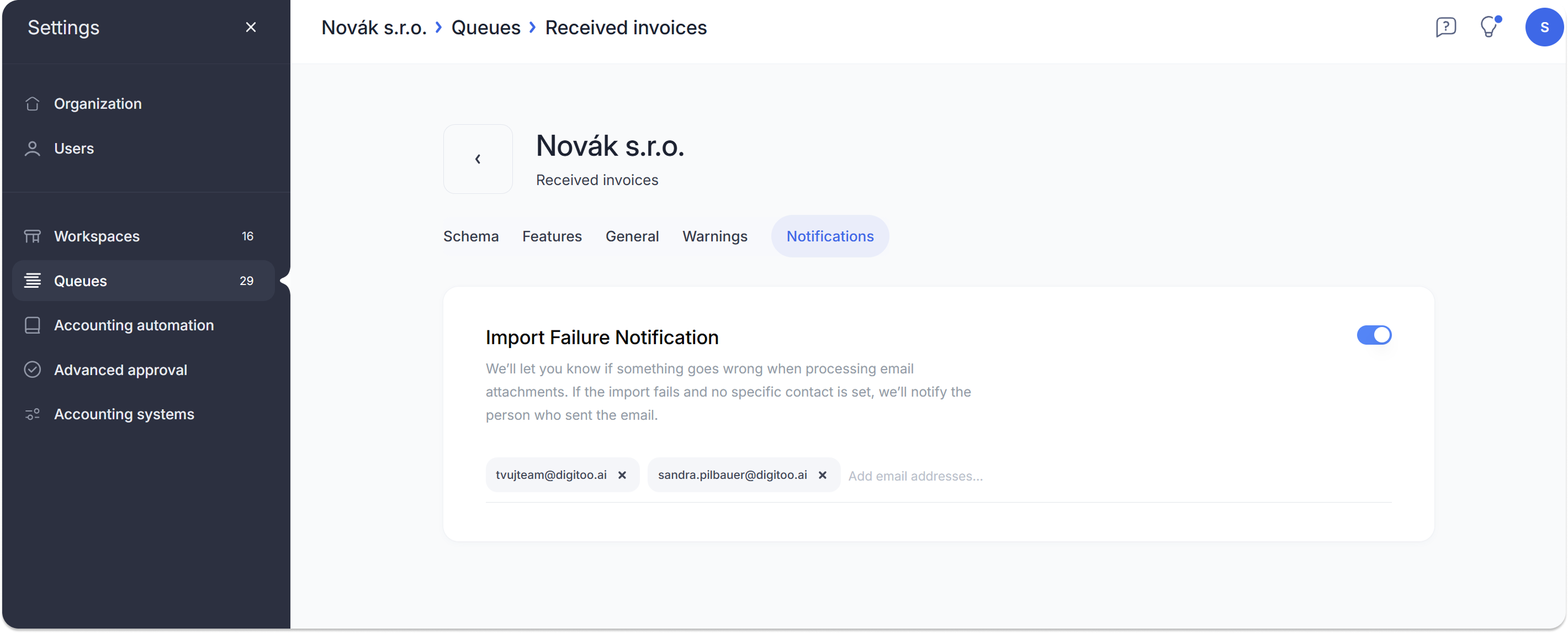
If you wish to receive notifications about unsuccessful imports, this feature can be enabled (by users with Admin or higher roles). You can also specify the email address where these notifications should be sent. In the web application, go to Settings (top left corner) -> Queues -> Notifications tab. Here, you will find the settings for failed imports.
Setting up automatic forwarding
Gmail
If you use Gmail, you can configure everything under Settings -> Forwarding and POP/IMAP. Click Add a forwarding address and enter your Digitoo email address.
Google will then require address verification or a verification code. To complete this step, simply contact us at tvujteam@digitoo.cz, and we will verify the email for you. Finally, save your settings, and the setup is complete.
Outlook/ Microsoft 365
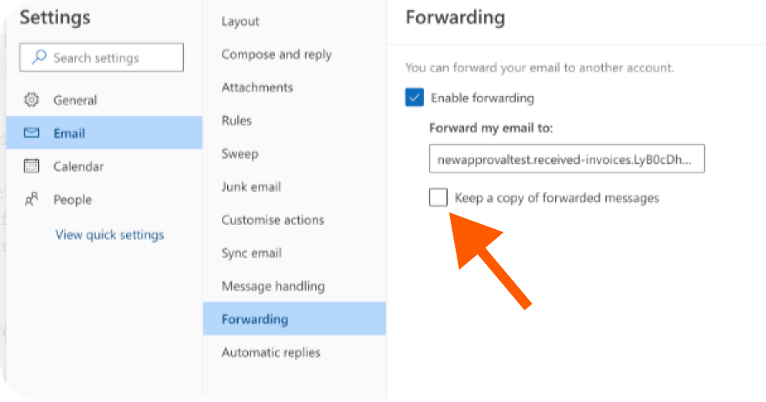
You can automatically forward or redirect your emails by setting up inbox rules. This is useful if you want to keep track of your messages while ensuring they reach Digitoo.ai.
- At the top of the page, select Settings (gear icon).
- Select Mail -> Forwarding.
- Select Enable forwarding, enter your Digitoo import email address, and click Save.
Troubleshooting & Important Settings:
Message Format: If emails are not being delivered to Digitoo.ai, ensure your Outlook is set to forward messages in HTML or Plain Text format.
Keep a Copy: If you want to receive notifications for failed imports while using Outlook, we recommend checking the option "Keep a copy of forwarded messages" in your settings. This ensures the original message remains available for troubleshooting if needed.