Export & Archive
All documents are automatically saved within our application and backed up in the MS Azure cloud for the duration of your contract.
However, you have the option to download any documents at any time (using search filters) in your preferred format:
- PDF with ISDOC
- XLSX (Excel)
- CSV
- PNG
- ISDOC
- XML (Generic)
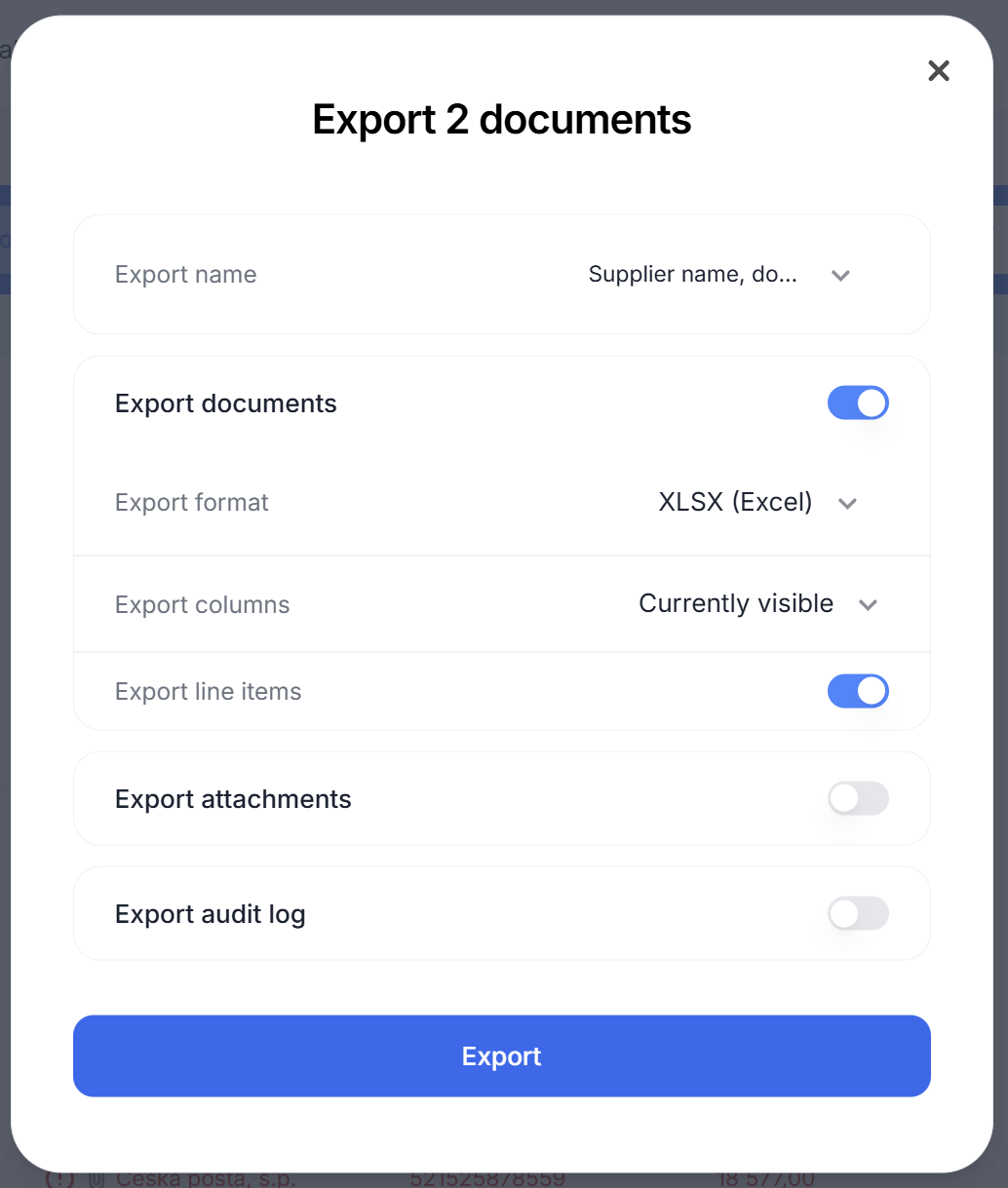
You can download documents from any tab. Simply select the documents you wish to export by checking the boxes in the first column. Then, click the Export button and choose both the filename format and the file format itself. In the next step, you can choose whether to include attachments and the audit log (if this feature is part of your subscription). Finally, confirm by clicking the Export button.
Export Delivery
Single document: If you are downloading only one document, it will download immediately.
Multiple documents (2 or more): You will receive an email containing a link to download a ZIP file.
Bulk exports: Bulk exports in various formats are supported up to a limit of 10,000 documents. In this case, you will receive an email with multiple links (each containing 1,000 documents). If you need to export more than 10,000 documents, the export must be split into multiple batches within this limit.
Note on attachments: If you choose to export attachments and the audit log, each downloaded document will have its own individual folder containing these files.
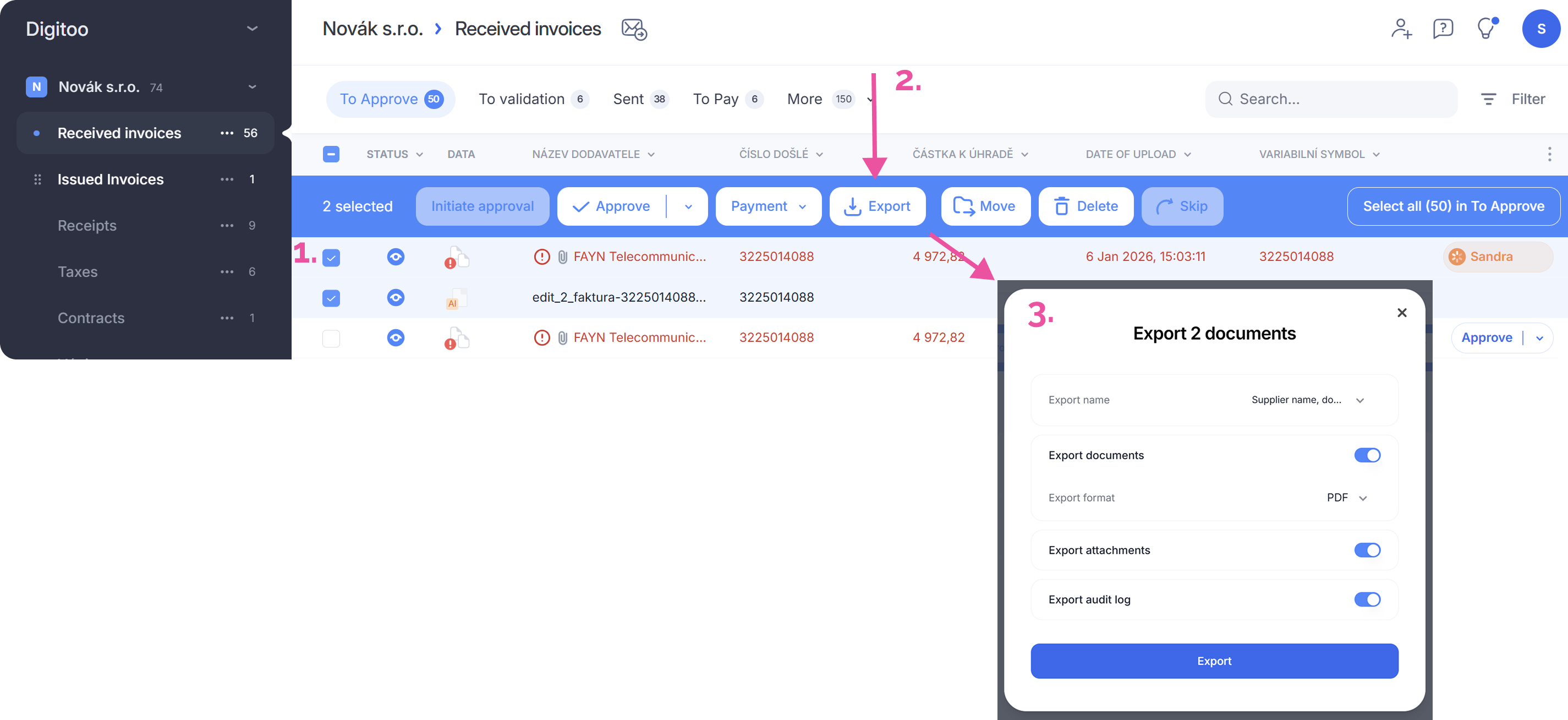
💡Tip: When exporting, you can customize the filename format for your downloaded files. Simply expand the "Filename" option and select your preferred format.

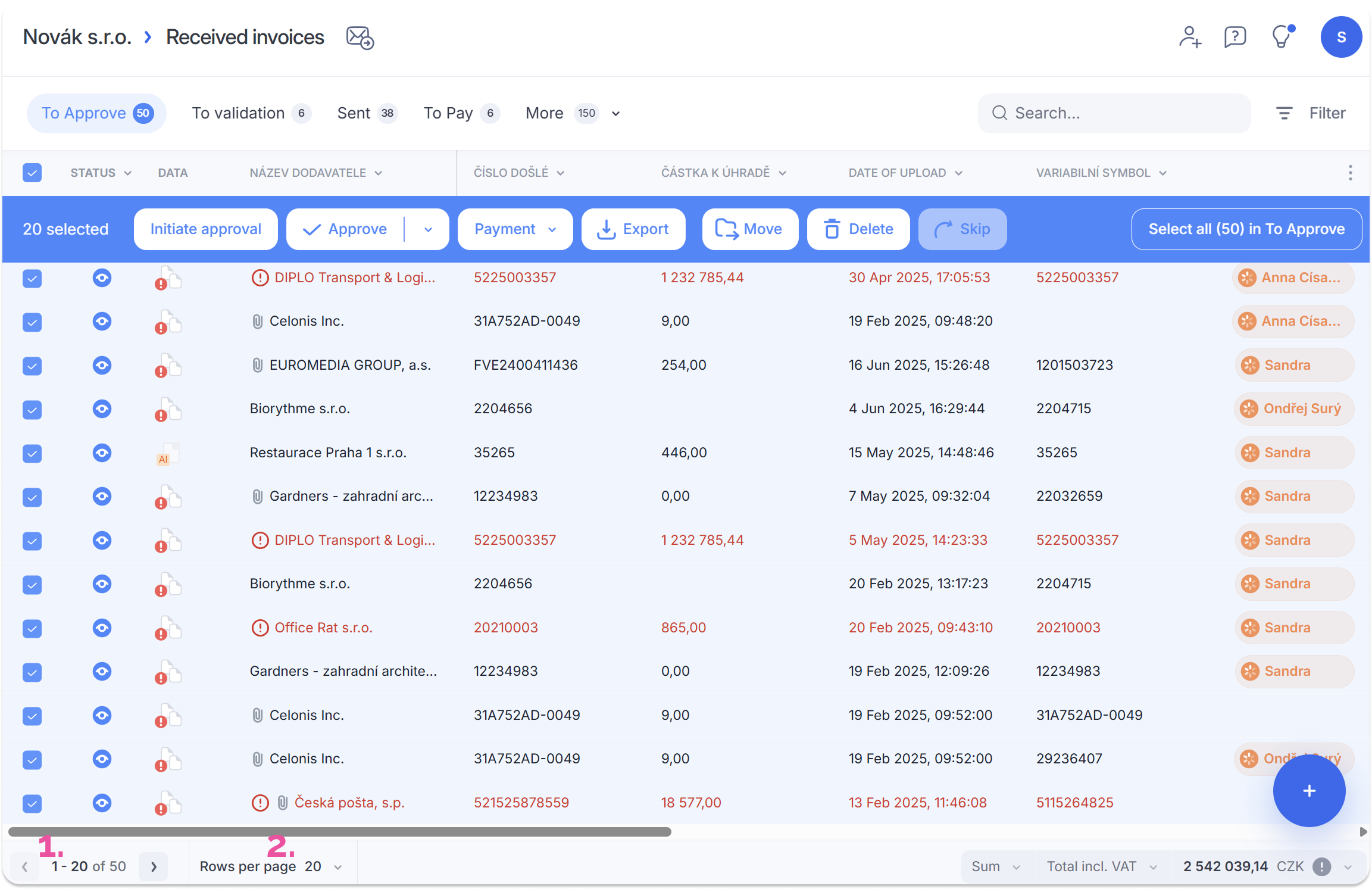
If your documents span multiple pages within a tab, you can choose to select all items on the current page
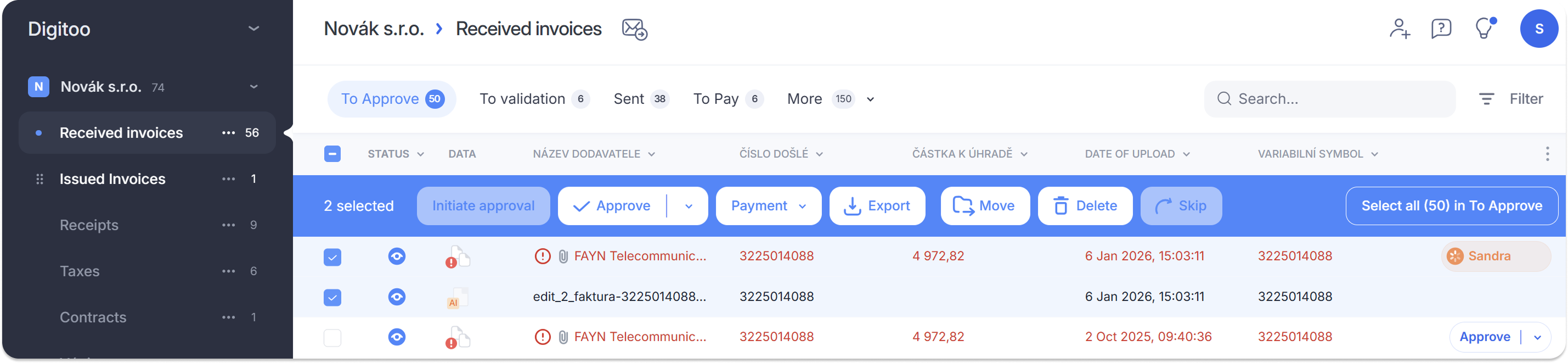
...or adjust the settings to display more results per page.
Tady je překlad této části věnované tabulkovým formátům. Opět jsem zvolil přehledný, instruktážní tón.
Exporting to Spreadsheet Formats – XLSX or CSV
Digitoo.ai allows you to export data from the application into a spreadsheet, enabling you to generate custom reports.
- Select the documents you wish to export (as described above) and choose either the XLSX or CSV format.
- In the next step, choose whether to export all columns (i.e., all extracted fields) or only the currently visible columns.
- Finally, check the option if you also want to include line item data from the documents, and confirm by clicking Export.
- You will receive an email with the file ready for download.