
Document Upload
Documents can be uploaded to the application in three ways: via email, by uploading from your computer, or through the mobile app.
We can also process multi-page documents and individual line items within them.
Supported Document Formats: We support the following formats: JPG, JPEG, PNG, TIFF, PDF, and PDF with an attached ISDOC. Currently, Digitoo.ai cannot process standalone ISDOC files, as you would have no visual reference to verify and edit the data.
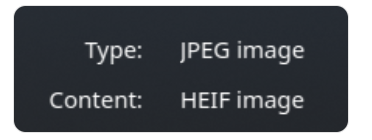
Unsupported Image/Photo Formats: We do not support HEIC/HEIF formats. These are most commonly the native settings on iPhones. Even if a photo's properties indicate it is a JPEG, the "content" may still be HEIC/HEIF. Such images cannot be uploaded to Digitoo.ai.
For importing documents—especially receipts—it is therefore recommended to use the Digitoo.ai mobile app. You can scan them directly or select them from your gallery and upload them to Digitoo.ai.
Uploading from your computer folder
In the Digitoo.ai web application, click on the company/accounting entity you wish to upload documents to. Then, select the Received Invoices, Receipts, or Issued Invoices tab, depending on where you want to upload the files.
You can upload documents directly by dragging and dropping them from a folder on your computer into the Digitoo.ai app—either into the invoice list of an open queue or directly onto the queue name in the left column.
Another option is to click the blue plus (+) icon in the bottom right corner, select "Add," and choose the documents you wish to upload.
You can also remove selected documents from the list by clicking the "X" icon. Once you have selected all the documents you want to upload, confirm by clicking "Upload." Your documents will be ready for further processing in the Digitoo.ai app shortly.
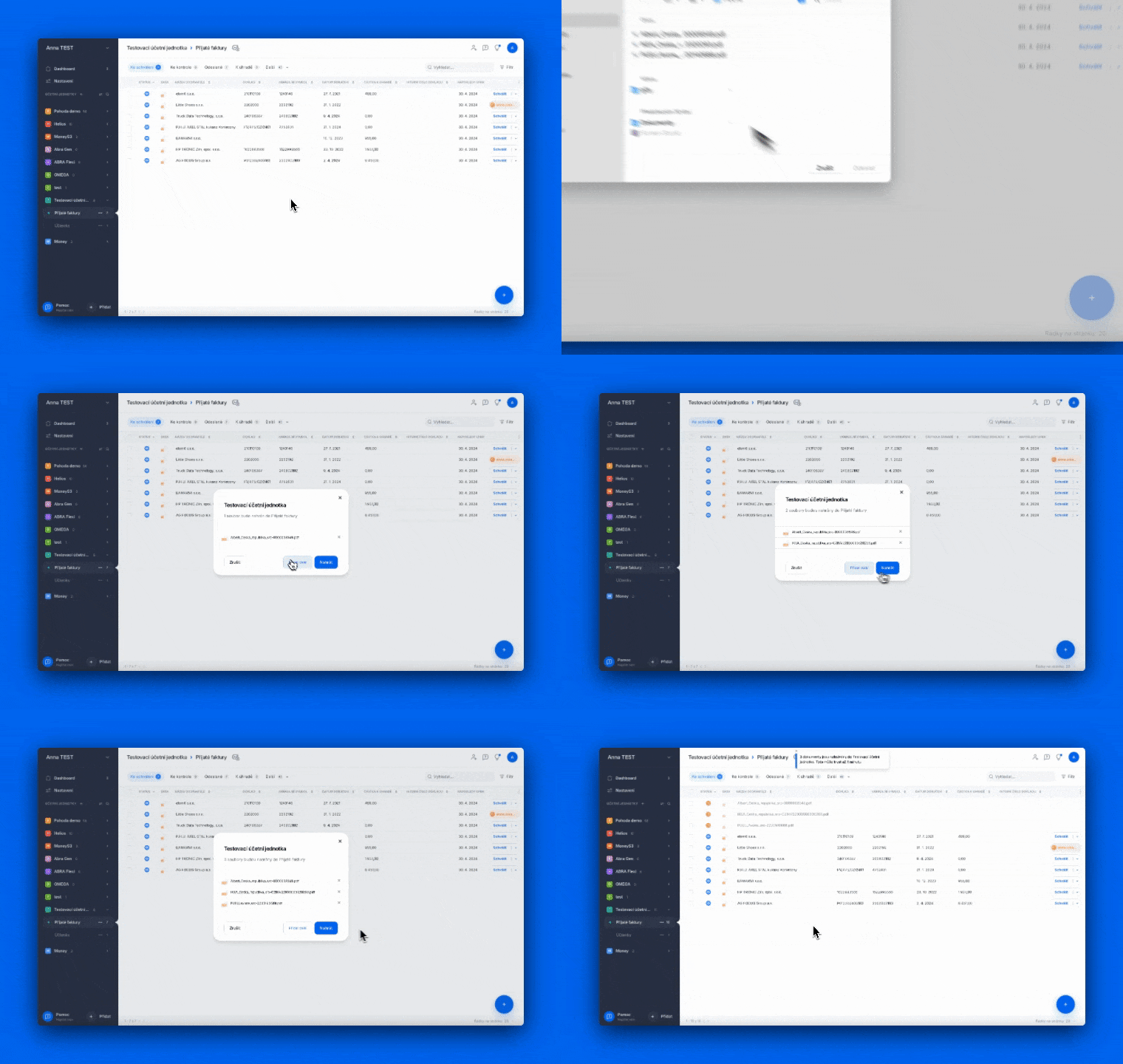
Uploading from computer via drag & drop
Open the folder on your computer containing the documents you wish to upload. Select them and simply drag and drop them into the appropriate company and queue within the Digitoo.ai application.
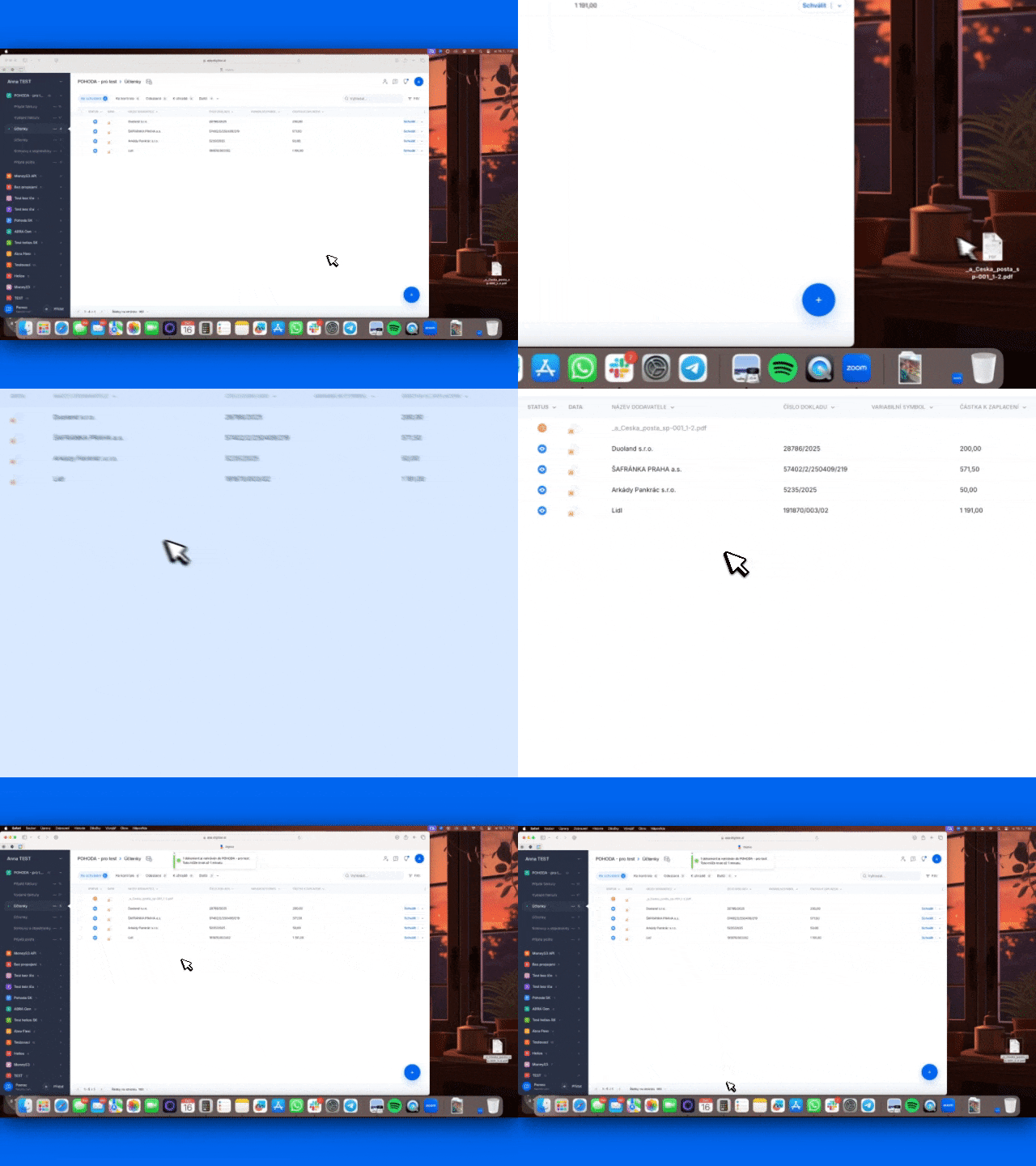
Via Email
Each queue has its own unique email address, which you can use to easily upload documents to Digitoo.ai. Click on the queue you want to upload documents to. In the top-center part of the screen, you will find an envelope icon. Clicking this icon will reveal the email address and allow you to easily copy it.
Simply enter this address as the recipient of your email. Alternatively, you can set up automatic forwarding directly to Digitoo.ai within your email inbox settings.
Once sent to this address, the documents will be uploaded to the application within moments, and all data will be automatically extracted in the background. You can even view the original email in which the document arrived directly in the document details.
It is possible to upload multiple documents at once via email; every attachment included in the email will be processed automatically.
Our AI can handle multi-page invoices, but it cannot split them automatically. If a single file contains multiple separate invoices, you can split them before uploading or directly within the application in the document details view using the scissors icon.
Once you upload a document, it will initially be in the ‘Importing’ status’ 
After a few seconds, the icon will change to 
Via the Mobile App
ou can easily download the app from Google Play or the App Store.
Minimum supported operating system versions:
- Android 14
- iOS 13.3
For the fastest access to Digitoo.ai, you can use our mobile app. It allows you to scan, approve, and send documents from anywhere, directly from your phone.
Using the mobile app, you can take a photo of your documents (or select them from your gallery) and upload them directly to a selected queue. Before sending, the app will automatically crop, straighten, and enhance the document. It will then appear in the application almost instantly.
To use the app, you must first have an account created via the web version. To log in to the mobile app, use the same credentials as you do for the PC version.
Splitting Multiple Documents in a Single File
1. Using the Scissors Tool
If a PDF file you upload contains several different invoices or receipts, you can split them after uploading using the Scissors function. You can find this tool in the document detail view once you open the file (read more in [this article]).
2. Using a QR Code Page Separator
We recommend organizing your documents before you actually upload them. If you have a stack of documents that you need to scan into Digitoo.ai so they are processed individually, we suggest inserting a printed QR code page between each document. Upon upload, the system will automatically split the documents wherever it detects this code.
👉 [Click this link to download the QR code]
Please note that this feature is not enabled by default for all users. If you would like to activate it, simply contact us at support@digitoo.cz.